Introduction
Adobe Photoshop is one of the most popular image editing and graphic design programs in the world. It is used by photographers, designers, marketers, content creators, students, and beginners who want to improve their images and create professional-looking graphics.
For beginners, Photoshop can seem complicated because it includes hundreds of tools, menus, panels, filters, and editing options. However, you do not need to learn everything at once. By understanding the essential Photoshop tools and practicing simple editing techniques, you can quickly build confidence.
This Photoshop tutorials for beginners guide explains the most important tools, basic editing techniques, layer management, image adjustments, selection methods, text tools, and practical tips that can help new users get started.
What Is Adobe Photoshop?
Adobe Photoshop is a professional image editing and graphic design software application developed by Adobe. It allows users to edit photographs, create digital artwork, design graphics, remove unwanted objects, adjust colors, add text, and create compositions from multiple images.
Photoshop works with layers, selections, masks, adjustment tools, filters, and other features that give users precise control over their designs.
Beginners can use Photoshop for simple tasks such as:
- Cropping photos
- Resizing images
- Adjusting brightness
- Correcting colors
- Removing backgrounds
- Adding text
- Improving portraits
- Creating social media graphics
- Designing banners
- Creating thumbnails
Learning these basic functions is a good starting point before moving toward advanced Photoshop techniques.
Getting Started With Photoshop
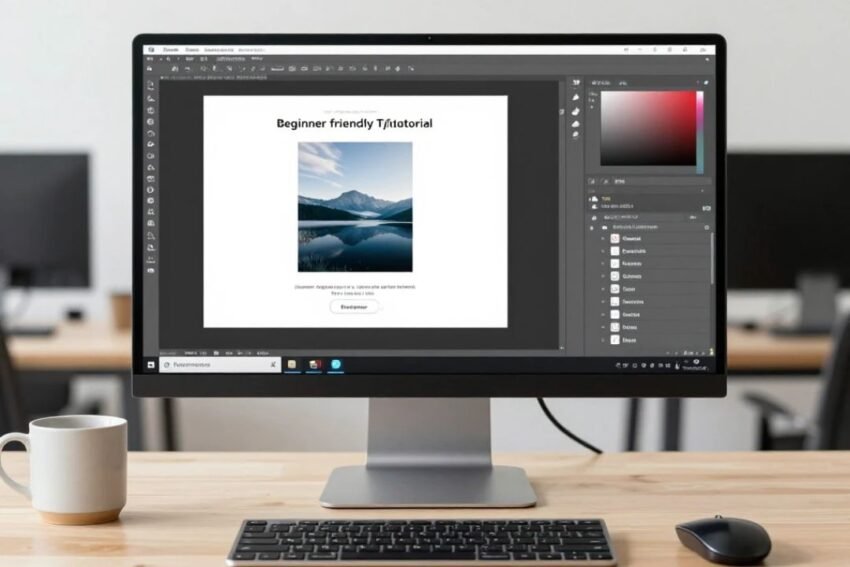
When you first open Photoshop, the interface can look overwhelming. The main workspace normally includes the toolbar, options bar, document window, panels, and layers panel.
Understanding the interface makes editing much easier.
Toolbar
The toolbar contains many of Photoshop’s most important tools. It includes tools for selecting objects, moving elements, cropping images, painting, erasing, adding text, and creating shapes.
Options Bar
The options bar changes depending on the selected tool. It allows you to modify settings such as brush size, selection mode, text formatting, or alignment.
Layers Panel
The Layers panel is one of the most important parts of Photoshop. It allows you to organize different elements of a design separately.
Document Window
The document window displays the image or design you are currently editing.
Beginners should spend some time exploring these areas before starting complicated projects.
Essential Photoshop Tools for Beginners
You do not need to memorize every Photoshop tool. Start with the tools you are most likely to use.
Move Tool
The Move Tool allows you to move objects, images, text, and other elements around your canvas.
It is especially useful when creating designs with multiple layers.
Crop Tool
The Crop Tool is used to remove unwanted areas around an image and improve its composition.
You can use it to create different image dimensions for websites, social media posts, thumbnails, and other projects.
Brush Tool
The Brush Tool allows you to paint on an image or layer.
You can change brush size, hardness, opacity, and other settings to achieve different effects.
Eraser Tool
The Eraser Tool removes pixels from a layer. However, beginners should learn layer masks as well because masks provide a safer, non-destructive way to hide parts of an image.
Text Tool
The Text Tool allows you to add headlines, captions, descriptions, logos, and other text elements.
You can change the font, size, alignment, spacing, and color.
Selection Tools
Selection tools allow you to select specific parts of an image.
Common selection tools include:
- Marquee Tool
- Lasso Tool
- Object Selection Tool
- Quick Selection Tool
- Magic Wand Tool
Selections are useful when you want to edit one part of an image without affecting everything else.
Understanding Photoshop Layers
Layers are fundamental to Photoshop editing.
Think of layers as transparent sheets stacked on top of one another. Each layer can contain different elements of your design.
For example, a simple poster might contain:
- Background layer
- Photo layer
- Logo layer
- Heading layer
- Description layer
- Decorative elements
You can move, hide, duplicate, rename, or edit each layer separately.
Why Layers Matter
Layers make Photoshop projects easier to manage and edit.
Instead of permanently changing the original image, you can place edits on separate layers whenever possible.
A useful beginner habit is to rename layers clearly. Names such as “Background,” “Main Photo,” “Logo,” and “Text” are much easier to understand than generic names such as “Layer 1” and “Layer 2.”
Basic Photo Editing in Photoshop
One of the easiest ways to learn Photoshop is by editing a photograph.
Start with simple adjustments rather than complicated effects.
Crop Your Image
Open your image and select the Crop Tool.
Adjust the crop area to remove unnecessary parts of the photo. You can also choose a specific aspect ratio when preparing images for social media or other platforms.
Adjust Brightness and Contrast
Brightness controls how light or dark an image appears, while contrast controls the difference between lighter and darker areas.
Moderate adjustments can make a photograph look clearer and more balanced.
Adjust Color
Photoshop provides several tools for improving color.
Common options include:
- Hue/Saturation
- Vibrance
- Color Balance
- Curves
- Levels
Beginners should make small adjustments and compare the result with the original.
How to Resize an Image
Image resizing is another essential Photoshop skill.
Go to the image-size controls and choose the desired dimensions.
When resizing images, consider both width and height. For many projects, maintaining the original aspect ratio helps prevent unwanted stretching.
Large images may also contain unnecessary file size. Resizing an image appropriately can make it easier to upload to websites and social media platforms.
How to Remove an Image Background
Background removal is a popular Photoshop task.
Modern versions of Photoshop include selection and masking features that can help identify subjects.
A basic workflow is:
- Open the image.
- Select the subject.
- Refine the selection.
- Create a layer mask.
- Review the edges.
- Correct difficult areas.
- Place the subject on a new background if needed.
Hair, transparent objects, and complex edges can require additional refinement.
For beginners, practicing with simple objects and clear backgrounds is a good way to develop selection skills.
Using Layer Masks
Layer masks are one of the most useful non-destructive Photoshop techniques.
A mask allows you to hide or reveal parts of a layer without permanently deleting the pixels.
White areas of a mask generally reveal the layer, while black areas hide it.
This makes masks useful for:
- Background removal
- Blending images
- Selective editing
- Creative compositions
- Photo corrections
Learning masks early can help beginners develop better editing habits.
Photoshop Adjustment Layers
Adjustment layers allow you to change the appearance of an image without directly modifying the original pixels.
Common adjustment layers include:
- Brightness/Contrast
- Levels
- Curves
- Hue/Saturation
- Color Balance
- Black & White
- Exposure
Adjustment layers are especially useful because you can change their settings later.
This makes your workflow more flexible and easier to correct.
Basic Photoshop Color Correction
Color correction helps improve the overall appearance of a photograph.
Sometimes an image may look too warm, too cool, too dark, or too saturated.
You can use tools such as Curves, Levels, Hue/Saturation, and Color Balance to improve the image.
When correcting colors, avoid making extreme changes immediately.
A good approach is to:
- Examine the original image.
- Identify color problems.
- Make small adjustments.
- Compare the result.
- Check skin tones and important details.
- Make final refinements.
Natural-looking results are usually better than excessive color effects.
How to Add Text in Photoshop
Adding text is important for graphic design projects.
You can use Photoshop’s Type Tool to create:
- Headlines
- Captions
- Posters
- Social media graphics
- Website banners
- YouTube thumbnails
- Advertisements
Choose fonts that are easy to read and appropriate for the design.
Beginners should avoid using too many different fonts in one project. A simple combination of one or two complementary fonts can create a cleaner appearance.
Creating Simple Photoshop Designs
Once you understand layers, selections, text, and basic adjustments, you can start creating simple designs.
A beginner project could be a social media post.
For example:
- Create a new document.
- Choose the required dimensions.
- Add a background.
- Import a photograph.
- Add a headline.
- Add supporting text.
- Align the elements.
- Adjust colors.
- Review the design.
- Export the final image.
This type of project helps you practice multiple Photoshop skills at the same time.
Photoshop Keyboard Shortcuts for Beginners
Keyboard shortcuts can make Photoshop much faster to use.
Some useful shortcuts include:
- Ctrl + Z — Undo
- Ctrl + C — Copy
- Ctrl + V — Paste
- Ctrl + S — Save
- Ctrl + T — Free Transform
- Ctrl + J — Duplicate layer
- Ctrl + Shift + S — Save As
- B — Brush Tool
- V — Move Tool
- T — Type Tool
- C — Crop Tool
On macOS, many Ctrl shortcuts use the Command key instead.
Learning a few shortcuts at a time is easier than trying to memorize everything.
Common Photoshop Mistakes Beginners Should Avoid
New Photoshop users often make similar mistakes.
Editing the Original Layer
Direct editing can make it harder to return to the original image.
Whenever practical, use duplicate layers or adjustment layers.
Using Too Many Effects
Excessive shadows, glows, filters, and color effects can make a design look unprofessional.
Start with subtle adjustments.
Ignoring Layer Organization
A complicated project can become difficult to manage when layers have unclear names.
Rename important layers and organize related elements.
Working Without Saving
Photoshop projects can contain many hours of work.
Save regularly and keep organized project files.
Exporting With the Wrong Settings
The ideal export format depends on the intended use.
JPEG can be useful for many photographs, while PNG may be useful when transparency is required. Photoshop project files can preserve layers for future editing.
Tips for Better Photoshop Editing
Beginners can improve quickly by following a few simple principles.
Work Non-Destructively
Use adjustment layers, masks, and duplicate layers when appropriate.
This allows you to change your work later.
Zoom In and Out
Do not judge an image only at one zoom level.
Check details closely, then zoom out to evaluate the overall composition.
Compare Before and After
Temporarily hide adjustment layers or edited versions to compare your changes with the original.
This helps prevent excessive editing.
Keep Designs Simple
Good design does not require dozens of effects.
Focus on composition, readability, balance, color, and visual hierarchy.
Practice With Real Projects
Instead of only watching tutorials, create small projects yourself.
Try designing:
- Social media posts
- Posters
- YouTube thumbnails
- Photo collages
- Website banners
- Simple advertisements
Practical projects help reinforce what you learn.
Photoshop Tutorials for Beginners: A Simple Learning Path
A structured learning path can make Photoshop easier to understand.
Start with the interface and basic navigation.
Next, learn:
- Layers
- Move Tool
- Crop Tool
- Selection tools
- Brush Tool
- Text Tool
- Layer masks
- Adjustment layers
- Color correction
- Background removal
- Basic retouching
- Simple graphic design
After learning these fundamentals, you can move toward more advanced subjects such as compositing, professional retouching, digital painting, advanced typography, photo manipulation, and creative effects.
How Long Does It Take to Learn Photoshop?
The time required to learn Photoshop depends on your goals and practice schedule.
A beginner can learn basic tools and simple editing techniques relatively quickly. Developing professional-level skills takes significantly more practice.
Consistent practice is more important than trying to learn every feature at once.
Even 20 to 30 minutes of focused practice can help you improve when you work on real projects.
The Role of AI in Photoshop
Artificial intelligence is becoming an important part of modern image editing.
AI-powered Photoshop features can assist with tasks such as:
- Generating image content
- Removing unwanted objects
- Expanding images
- Selecting subjects
- Editing backgrounds
- Creating variations
These tools can make some editing workflows faster, but understanding traditional Photoshop fundamentals remains valuable.
AI features work best when users understand how to evaluate and refine the results.
Photoshop Tips for Better Results
A few practical habits can significantly improve your workflow.
Use High-Quality Images
Starting with a good-quality image gives you more flexibility during editing.
Keep Original Files
Maintain a copy of the original photograph before making major changes.
Use Appropriate Resolution
Choose document dimensions and resolution according to the final purpose.
Check Edges Carefully
When removing backgrounds or making selections, inspect edges for unwanted halos and rough areas.
Use Layers Strategically
Separate important design elements so they can be edited independently.
Review Your Work Before Exporting
Check alignment, spelling, colors, image quality, and unwanted elements before saving the final version.
Conclusion
Photoshop tutorials for beginners are an excellent way to learn one of the most powerful image editing and graphic design applications available today.
Beginners do not need to master every Photoshop feature immediately. Start with essential tools such as the Move Tool, Crop Tool, Brush Tool, Text Tool, and selection tools. Then learn how layers, masks, and adjustment layers work together.
Basic skills such as cropping, resizing, color correction, background removal, text editing, and simple graphic design provide a strong foundation for more advanced Photoshop work.
The most effective way to learn Photoshop is through regular practice. Create small projects, experiment with different tools, and review your results carefully.
As your skills develop, you can move into advanced photo retouching, professional graphic design, compositing, digital artwork, AI-powered editing, and other creative techniques.
With consistent practice and a clear learning path, Photoshop can become a powerful tool for creating professional photos, graphics, designs, and digital content.