Introduction
Adobe Photoshop is one of the most widely recognized software applications for image editing, graphic design, digital art, photo retouching, and creative content production. For decades, Photoshop has been used by photographers, graphic designers, digital artists, marketers, web designers, businesses, and content creators.
Modern Photoshop has evolved far beyond basic photo editing. It now includes advanced selection tools, layers, masks, filters, typography features, professional color controls, automation capabilities, and artificial intelligence-powered tools.
Whether you are a beginner learning how to edit photos or a professional creating complex designs, understanding the major Adobe Photoshop tools and features can help you work more efficiently.
This complete guide explains what Photoshop is, how it works, its essential tools, important features, photo-editing techniques, graphic-design capabilities, AI features, and practical ways to learn Photoshop.
What Is Adobe Photoshop?
Adobe Photoshop is a professional image-editing and graphic-design application developed by Adobe.
It is commonly used for:
- Photo editing
- Image retouching
- Graphic design
- Digital painting
- Social media graphics
- Web graphics
- Advertising designs
- Product images
- Background removal
- Image compositing
- Typography
- Creative artwork
Photoshop works primarily with raster images, meaning images are made from pixels. This makes it especially useful for detailed photo editing and pixel-level manipulation.
How Does Adobe Photoshop Work?
Photoshop provides a workspace where users can import images and manipulate them using different tools, layers, adjustments, and effects.
A typical editing workflow can include:
- Open an image.
- Create a working copy.
- Organize content using layers.
- Make selections.
- Apply adjustments.
- Retouch unwanted areas.
- Add text or graphic elements.
- Apply effects when necessary.
- Review the final design.
- Export the finished image.
Photoshop provides significant control over individual elements, making it suitable for both simple and complex creative projects.
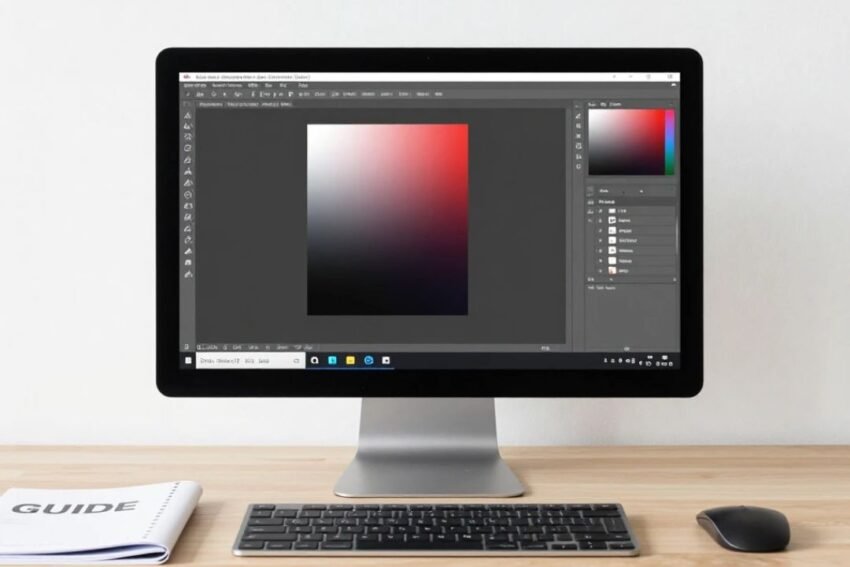
Photoshop Workspace
The Photoshop workspace contains several important areas.
Toolbar
The toolbar provides access to tools used for selecting, painting, cropping, retouching, drawing, and other tasks.
Options Bar
The Options bar changes depending on the selected tool and provides settings for that tool.
Layers Panel
The Layers panel allows users to organize different elements of an image independently.
Properties and Adjustments
These panels provide controls for editing selected objects, masks, and image adjustments.
Canvas
The canvas is the main working area where the image or design is displayed.
Understanding the workspace is one of the first steps for new Photoshop users.
Essential Adobe Photoshop Tools
Photoshop includes a large collection of tools. Beginners should focus on the most commonly used ones first.
Move Tool
The Move Tool allows users to move selected objects, layers, or elements around the canvas.
It is useful when creating compositions with multiple design elements.
Marquee Tools
Marquee tools create rectangular or elliptical selections.
They are useful for selecting simple geometric areas.
Lasso Tools
Lasso tools allow users to create freeform selections.
They can be useful when selecting irregular objects or areas of an image.
Object Selection Tool
The Object Selection Tool can help identify and select objects within an image.
This can make complex selections faster than manually drawing around every edge.
Crop Tool
The Crop Tool allows users to remove unwanted areas and change the framing of an image.
Cropping is useful for:
- Social media images
- Website graphics
- Product photography
- Portraits
- Marketing designs
Brush Tool
The Brush Tool is one of Photoshop’s most versatile tools.
It can be used for:
- Digital painting
- Mask editing
- Retouching
- Creative effects
- Layer work
Brush settings can control size, hardness, opacity, and other characteristics.
Eraser Tool
The Eraser Tool removes pixels from a layer.
However, layer masks are often preferable when users want to make non-destructive edits.
Healing Brush
Healing tools can help remove imperfections from photographs.
They are commonly used for:
- Skin retouching
- Removing small objects
- Fixing imperfections
- Cleaning backgrounds
Clone Stamp Tool
The Clone Stamp Tool copies pixels from one area to another.
It can be useful for detailed retouching and repairing photographs.
Understanding Layers in Photoshop
Layers are one of the most important Photoshop concepts.
Instead of editing everything on a single image, users can separate elements into different layers.
For example, a design may contain:
- Background layer
- Photo layer
- Logo layer
- Text layer
- Adjustment layer
- Decorative elements
This makes it easier to edit individual components without changing the entire design.
Layers can also be:
- Renamed
- Hidden
- Duplicated
- Grouped
- Rearranged
- Blended
- Masked
Learning layers is essential for efficient Photoshop workflows.
Layer Masks
Layer masks allow users to hide or reveal portions of a layer without permanently deleting the original pixels.
This is useful for:
- Background removal
- Image compositing
- Selective editing
- Blending images
- Creating complex designs
Masks are an important part of non-destructive Photoshop editing.
Adjustment Layers
Adjustment layers allow users to modify the appearance of images without permanently changing the original layer.
Common adjustments include:
- Brightness and contrast
- Levels
- Curves
- Hue and saturation
- Color balance
- Black and white
- Exposure
Adjustment layers make it easier to modify or reverse edits later.
Photoshop Selection Tools
Selections are essential for targeted editing.
Photoshop provides several ways to select areas or objects.
These include:
- Marquee selections
- Lasso selections
- Object selection
- Quick Selection
- Magic Wand
- Color-based selection methods
Selections can be combined with masks and adjustment layers for more precise editing.
Photo Editing With Adobe Photoshop
Photoshop is widely used for professional photo editing.
Users can improve photographs by adjusting:
- Exposure
- Brightness
- Contrast
- Colors
- Sharpness
- Shadows
- Highlights
- Saturation
A good editing workflow should preserve important image details and avoid excessive processing.
Photo Retouching
Photo retouching is another major Photoshop application.
Retouching can include:
- Removing unwanted objects
- Correcting minor skin imperfections
- Cleaning backgrounds
- Repairing damaged images
- Improving composition
- Adjusting lighting
Professional retouching generally focuses on improving an image while maintaining a natural appearance.
Background Removal in Photoshop
Background removal is commonly required for product photography, marketing materials, profile images, and graphic design.
Photoshop provides selection and masking tools that can help isolate subjects.
A typical workflow is:
- Select the subject.
- Refine the selection.
- Create a layer mask.
- Inspect edges.
- Correct difficult areas.
- Add a new background if required.
AI-powered selection features can make this process faster in suitable images.
Graphic Design With Photoshop
Photoshop is not only a photo editor.
It can also be used to create:
- Posters
- Banners
- Advertisements
- Social media graphics
- Website graphics
- Thumbnails
- Promotional materials
- Digital artwork
Designers can combine photographs, typography, shapes, textures, and effects to create visual compositions.
Typography and Text Tools
Photoshop provides tools for working with text.
Users can control:
- Font
- Size
- Weight
- Alignment
- Spacing
- Color
- Text effects
Text layers remain editable, making them useful for designs that require frequent changes.
Photoshop can also create effects such as shadows, outlines, gradients, and other visual treatments.
Photoshop Filters and Effects
Filters can change the appearance of images or create creative effects.
They can be used for:
- Blur
- Sharpening
- Distortion
- Artistic effects
- Noise reduction
- Texture creation
Filters should generally be used carefully. Excessive effects can reduce image quality or make a design look unnatural.
Blending Modes
Blending modes determine how pixels on one layer interact visually with pixels on layers below.
Common blending modes include:
- Multiply
- Screen
- Overlay
- Soft Light
- Color
- Luminosity
Blending modes are useful for:
- Lighting effects
- Texture overlays
- Color adjustments
- Creative compositions
- Double exposures
Understanding blending modes can significantly expand Photoshop design possibilities.
Smart Objects
Smart Objects allow users to preserve the original characteristics of certain content while applying transformations and effects.
They are useful when working with:
- Reusable graphics
- Product mockups
- Templates
- Repeated elements
- Non-destructive transformations
Smart Objects can make complex Photoshop projects easier to manage.
Adobe Photoshop and Artificial Intelligence
Artificial intelligence is increasingly becoming part of modern Photoshop workflows.
AI-powered capabilities can assist with tasks such as:
- Generating image content
- Extending image areas
- Removing unwanted elements
- Making selections
- Creating variations
- Editing images using natural-language instructions
These features can reduce the time required for certain repetitive tasks.
However, users should still review AI-generated results carefully, particularly for professional, commercial, or factual imagery.
Generative AI in Photoshop
Generative AI can help Photoshop users modify or expand images.
For example, a user may want to extend the edges of a photograph or replace part of an image.
AI-assisted generation can provide potential content that blends with the existing composition.
This can be useful for:
- Expanding backgrounds
- Creating design variations
- Removing objects
- Adding visual elements
- Exploring creative concepts
Results can vary depending on the source image and the editing instructions.
Photoshop for Social Media Design
Photoshop is widely useful for creating social media graphics.
Users can design:
- Instagram posts
- YouTube thumbnails
- Facebook graphics
- Promotional banners
- Advertisement creatives
- Profile graphics
Designers should consider platform-specific dimensions, readable typography, strong visual hierarchy, and optimized file sizes.
Photoshop for Web Design
Photoshop can also support web design workflows.
Designers can create:
- Website mockups
- UI concepts
- Website banners
- Icons
- Background graphics
- Promotional images
Although modern web design often uses dedicated UI and prototyping tools, Photoshop remains useful for image preparation and visual asset creation.
Photoshop File Formats
Photoshop supports several image and project formats.
PSD
PSD is Photoshop’s native project format.
It can preserve:
- Layers
- Masks
- Text
- Effects
- Adjustment layers
JPEG
JPEG is widely used for photographs and web images.
PNG
PNG is useful when transparency or higher-quality graphics are required.
TIFF
TIFF is commonly used in professional imaging and print workflows.
Choosing the correct format depends on how the final image will be used.
Non-Destructive Photoshop Editing
Non-destructive editing allows users to make changes while preserving the original content.
Useful techniques include:
- Adjustment layers
- Layer masks
- Smart Objects
- Duplicate layers
- Smart Filters
Non-destructive workflows are especially valuable for professional projects because edits can be modified later.
Photoshop for Beginners
Beginners should avoid trying to learn every Photoshop feature at once.
A practical learning path is:
- Learn the Photoshop workspace.
- Understand layers.
- Practice selections.
- Learn cropping and resizing.
- Study basic color adjustments.
- Practice masks.
- Learn retouching tools.
- Explore text and typography.
- Practice simple graphic designs.
- Learn AI-assisted features.
- Build complete projects.
Regular practice is more effective than simply memorizing tool names.
Photoshop for Professional Designers
Professional users often combine Photoshop with other creative applications and workflows.
They may use Photoshop for:
- Photo editing
- Image compositing
- Digital artwork
- Marketing graphics
- Product visuals
- Retouching
Professional workflows often emphasize organization, non-destructive editing, consistent file management, color accuracy, and efficient collaboration.
Benefits of Adobe Photoshop
Photoshop offers several important benefits.
Powerful Editing
Users have detailed control over images and individual elements.
Flexible Design
Photoshop can support both photography and graphic design.
Professional Workflows
Layers, masks, Smart Objects, and adjustment systems support complex projects.
AI Features
Modern AI tools can accelerate selected editing tasks.
Creative Flexibility
Users can combine photography, illustration, typography, effects, and other visual elements.
Challenges of Adobe Photoshop
Photoshop is powerful, but it can have a learning curve.
Complex Interface
Beginners may find the number of tools and panels overwhelming.
Subscription Cost
Photoshop is generally offered as part of Adobe’s paid software ecosystem.
Hardware Requirements
Large projects and high-resolution images can require significant computer resources.
Over-Editing
Excessive filters or retouching can make images look unnatural.
Skill Development
Professional results require practice and an understanding of design and image-editing principles.
How to Improve Photoshop Skills
Users can improve their Photoshop abilities by practicing real projects.
Useful exercises include:
- Removing backgrounds
- Retouching portraits
- Creating posters
- Designing social media graphics
- Editing product photographs
- Creating thumbnails
- Rebuilding simple designs
- Practicing typography
- Creating image composites
Following structured tutorials and experimenting with different tools can also accelerate learning.
Future of Adobe Photoshop
The future of Photoshop is likely to involve greater integration of artificial intelligence and automation.
AI can help simplify repetitive tasks while allowing users to focus on creative decisions.
Future workflows may increasingly include:
- Natural-language editing
- AI-assisted retouching
- Automated selections
- Generative image editing
- Intelligent object manipulation
- Automated design variations
- Smarter creative workflows
The role of the designer is also likely to evolve as AI handles more technical or repetitive operations.
Conclusion
Adobe Photoshop remains a powerful platform for photo editing, graphic design, digital art, retouching, and visual content creation.
Its most important capabilities include layers, masks, selections, adjustment layers, brushes, retouching tools, Smart Objects, blending modes, typography, filters, and AI-powered editing features.
Beginners can start with basic tools and gradually develop more advanced skills. Professional users can use Photoshop’s extensive features to create sophisticated visual projects for photography, advertising, marketing, web design, social media, and digital art.
Artificial intelligence is also changing the Photoshop experience by helping users perform certain editing and creative tasks more quickly.
However, powerful software alone does not guarantee great results. Understanding composition, color, typography, image quality, and design principles remains important.
As Photoshop continues to combine professional image editing with artificial intelligence and automation, it is likely to remain an important tool for photographers, designers, creators, marketers, and businesses in the evolving digital creative industry.