Introduction
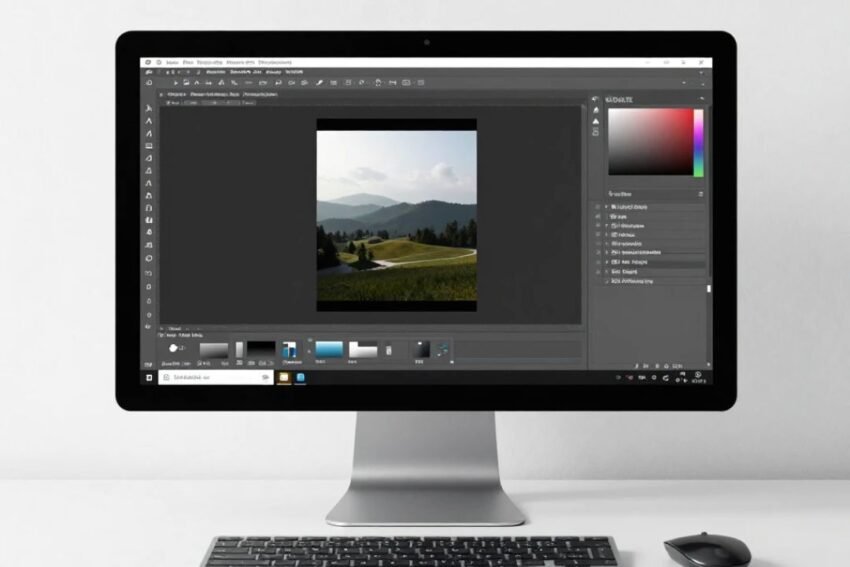
Photoshop graphic design techniques in 2026 are becoming more powerful as Adobe Photoshop combines traditional editing capabilities with artificial intelligence, generative tools, automation, and advanced creative features. Designers can now create professional graphics for websites, social media, advertising, branding, marketing, digital art, and many other applications.
Photoshop remains popular because it gives designers detailed control over images, typography, colors, layers, masks, shapes, and visual effects. At the same time, AI-assisted features can reduce repetitive work and help users explore creative ideas faster.
Learning the right Photoshop graphic design techniques can help beginners build strong fundamentals while allowing experienced designers to create more efficient workflows.
This guide covers some of the most useful Photoshop graphic design techniques in 2026, including layer management, typography, color correction, photo compositing, masking, AI-assisted editing, social media design, and advanced creative effects.
1. Master Layers for Better Designs
Layers are the foundation of professional Photoshop graphic design.
Instead of placing every element on one layer, designers can separate the project into multiple layers.
For example, a promotional graphic may contain:
- Background
- Product image
- Logo
- Headline
- Supporting text
- Shapes
- Shadows
- Effects
Keeping these elements separate makes the design easier to edit.
Use descriptive layer names and group related elements into folders.
A well-organized Layers panel can save considerable time during large projects.
2. Use Layer Masks for Non-Destructive Editing
Layer masks allow designers to hide portions of a layer without permanently deleting them.
They are useful for:
- Background removal
- Image blending
- Compositing
- Selective adjustments
- Creative effects
A layer mask provides more flexibility than permanently erasing pixels.
If you make a mistake, you can modify the mask instead of rebuilding the design.
This makes layer masks one of the most important Photoshop graphic design techniques to learn.
3. Improve Selections With Advanced Selection Tools
Accurate selections are essential for professional graphic design.
Photoshop offers tools such as:
- Object Selection
- Quick Selection
- Magic Wand
- Lasso tools
- Marquee tools
AI-assisted selection can make some tasks faster by recognizing subjects and objects automatically.
However, designers should always inspect edges carefully.
Fine details such as hair, fur, transparent objects, and complicated backgrounds may require manual refinement.
4. Learn the Pen Tool
The Pen Tool provides precise control over paths and selections.
It can be particularly useful for:
- Product photography
- Custom shapes
- Precise cutouts
- Graphic design elements
- Professional image manipulation
Beginners may find the Pen Tool difficult at first, but regular practice can improve accuracy.
Understanding anchor points and curves allows designers to create clean selections and paths.
5. Create Strong Typography
Typography can determine whether a graphic looks professional.
Important typography principles include:
- Font selection
- Font size
- Weight
- Spacing
- Alignment
- Contrast
- Hierarchy
Use fonts that match the purpose of the design.
A business advertisement may require clean and professional typography, while entertainment or gaming graphics may use more expressive styles.
Avoid using too many typefaces in one design.
6. Create Visual Hierarchy
Visual hierarchy tells viewers what to notice first.
You can create hierarchy using:
- Size
- Color
- Contrast
- Position
- Font weight
- Spacing
For example, the main headline should generally be more prominent than supporting information.
A clear hierarchy makes designs easier to understand.
7. Use Color Theory
Color is a fundamental part of graphic design.
Photoshop provides tools for controlling color through:
- Hue
- Saturation
- Brightness
- Contrast
- Curves
- Levels
- Color Balance
Designers should understand basic color relationships.
Complementary colors can create contrast, while analogous colors can produce a more harmonious appearance.
A consistent color palette also helps strengthen brand identity.
8. Use Adjustment Layers
Adjustment Layers provide a non-destructive way to modify images.
Common adjustments include:
- Brightness and Contrast
- Levels
- Curves
- Hue/Saturation
- Color Balance
- Black & White
- Selective Color
Because the adjustment remains separate from the original image, it can be changed later.
This makes Adjustment Layers especially useful in professional workflows.
9. Master Curves for Professional Color Control
Curves is one of the most powerful Photoshop adjustment tools.
It allows designers to control different parts of the tonal range.
You can adjust:
- Shadows
- Midtones
- Highlights
- Contrast
Curves can also be used for color correction when working with individual color channels.
Learning Curves can significantly improve photo editing and graphic design skills.
10. Create Professional Photo Composites
Photo compositing involves combining multiple images into one visual composition.
A successful composite should have consistent:
- Lighting
- Perspective
- Scale
- Color
- Shadows
A typical workflow is:
- Select the main subject.
- Remove the original background.
- Place the subject into a new environment.
- Match the scale and perspective.
- Adjust lighting.
- Add shadows.
- Match colors.
- Apply final corrections.
Attention to these details helps create realistic results.
11. Use Blending Modes
Blending Modes control how layers interact with layers below them.
Common modes include:
- Multiply
- Screen
- Overlay
- Soft Light
- Color
- Luminosity
They can be used for:
- Lighting effects
- Texture overlays
- Color effects
- Shadows
- Creative compositions
Experimenting with blending modes can help designers discover new visual effects.
12. Add Depth With Shadows
Shadows can make graphic designs appear more realistic.
They can create the impression that an object is:
- Floating
- Standing on a surface
- Behind another object
- Illuminated from a specific direction
When creating shadows, consider the direction and softness of the light source.
Unrealistic shadows can make otherwise strong designs look artificial.
13. Use Gradients Effectively
Gradients are useful for creating depth and visual interest.
They can be used for:
- Backgrounds
- Text effects
- Buttons
- Posters
- Social media designs
- Digital artwork
Modern designs often use subtle gradients rather than extremely strong color transitions.
The gradient should support the composition and maintain readability.
14. Create Professional Text Effects
Photoshop provides numerous ways to enhance typography.
Designers can create:
- Shadow effects
- Glow effects
- Strokes
- Gradient text
- Metallic effects
- Neon effects
- 3D-inspired text
Text effects can be useful for posters, thumbnails, gaming graphics, advertisements, and promotional designs.
However, readability should remain the priority.
15. Use Smart Objects
Smart Objects help preserve flexibility when editing content.
They can be useful for:
- Mockups
- Product designs
- Reusable graphics
- Templates
- Repeated elements
When transformations or filters need to be adjusted later, Smart Objects can provide a more flexible workflow.
16. Create Professional Mockups
Mockups help designers show how a design might appear in the real world.
Examples include:
- Business cards
- Packaging
- T-shirts
- Mobile screens
- Product displays
- Posters
Photoshop can combine Smart Objects, perspective, shadows, highlights, and textures to create realistic mockups.
Mockups are especially useful for presenting branding concepts to clients.
17. Use AI-Assisted Editing
Artificial intelligence is becoming increasingly important in Photoshop.
AI-assisted tools can help with:
- Object selection
- Object removal
- Background editing
- Image expansion
- Generative modifications
These features can save time on repetitive tasks.
However, designers should inspect the results and make manual corrections where necessary.
AI should support the designer rather than remove creative control.
18. Explore Generative Editing
Generative editing allows designers to experiment with visual content.
A selected area can potentially be changed or expanded using generated content.
This can be useful for:
- Extending backgrounds
- Removing objects
- Adding elements
- Exploring alternate compositions
- Developing creative concepts
Generative tools are particularly useful during the experimentation stage.
The final result should still be reviewed for realism and visual consistency.
19. Design Social Media Graphics
Social media requires fast and flexible graphic design.
Photoshop can be used to create:
- Promotional posts
- Instagram graphics
- Facebook advertisements
- YouTube thumbnails
- LinkedIn graphics
- Pinterest visuals
Use templates to speed up recurring content.
Maintain consistent branding through:
- Colors
- Fonts
- Logos
- Layouts
- Image styles
20. Create Better YouTube Thumbnails
YouTube thumbnails need to communicate their message quickly.
A strong thumbnail often includes:
- A clear subject
- Strong contrast
- Large readable text
- Simple composition
- Recognizable branding
Avoid overcrowding the design with too many elements.
The thumbnail should remain understandable even when displayed at a smaller size.
21. Master Background Removal
Background removal is useful in many Photoshop projects.
It can be used for:
- Product images
- Portraits
- Advertisements
- Social media graphics
- Catalogs
- Creative composites
AI-assisted selection can make background removal faster.
For professional results, inspect edges around hair, clothing, and transparent areas.
22. Improve Photo Retouching
Retouching can improve the appearance of photographs without making them look artificial.
Useful techniques include:
- Removing temporary blemishes
- Cleaning distracting objects
- Improving lighting
- Adjusting skin tones
- Correcting small imperfections
Avoid excessive smoothing.
Natural texture is an important part of realistic photography.
23. Create Consistent Brand Designs
Brand consistency is important for businesses.
Photoshop can help create a reusable visual system using:
- Brand colors
- Fonts
- Logos
- Templates
- Graphic elements
Using consistent design elements across marketing materials can make a business easier to recognize.
24. Use Grids and Alignment
Good alignment can dramatically improve a design.
Use guides and grids to organize:
- Text
- Images
- Logos
- Shapes
- Margins
Alignment creates structure and makes a composition easier to understand.
Even creative designs benefit from a strong underlying layout.
25. Create Design Templates
Templates can improve productivity.
A Photoshop template may contain:
- Predefined dimensions
- Brand colors
- Typography
- Logo placement
- Image placeholders
- Design guides
Templates are useful for recurring social media campaigns, advertisements, presentations, and marketing graphics.
26. Practice Non-Destructive Workflow
Professional Photoshop users should avoid unnecessary permanent changes.
Use:
- Layer Masks
- Adjustment Layers
- Smart Objects
- Smart Filters
- Separate layers
This makes it easier to revise a design.
Non-destructive editing is particularly valuable when working with clients because revisions are common.
27. Optimize Images for Digital Platforms
Different platforms have different image requirements.
Before exporting, consider:
- Dimensions
- Resolution
- File format
- Compression
- Color profile
- File size
JPEG, PNG, WebP, and other formats may be suitable for different digital purposes.
Choose the format according to how the image will be used.
28. Learn Photo Compositing With Perspective
Perspective is important when combining multiple images.
Objects should appear correctly positioned relative to the environment.
Pay attention to:
- Horizon lines
- Camera angle
- Object scale
- Vanishing points
- Depth
Poor perspective matching can immediately make a composite look unrealistic.
29. Use Textures Carefully
Textures can add character to graphic designs.
Possible textures include:
- Paper
- Fabric
- Metal
- Concrete
- Noise
- Film grain
Textures can be combined with blending modes and masks.
Use them carefully because excessive texture can distract from the main message.
30. Develop a Repeatable Photoshop Workflow
A structured workflow can improve both speed and quality.
A practical process is:
- Define the design goal.
- Collect suitable images and assets.
- Create the document.
- Organize layers.
- Build the main composition.
- Add typography.
- Apply color adjustments.
- Add effects.
- Review alignment and spacing.
- Check the design at final size.
- Make corrections.
- Export the final version.
A repeatable process helps reduce mistakes and makes large projects easier to manage.
Best Photoshop Graphic Design Tips for Beginners
Beginners can improve quickly by practicing consistently.
Start With Simple Projects
Create posters, thumbnails, social media posts, and advertisements.
Learn One Tool at a Time
Do not try to master Photoshop in one day.
Practice Layers and Masks
These skills are essential for professional editing.
Study Typography
Learn how fonts, spacing, and hierarchy influence design.
Understand Color
Good color choices can transform a simple composition.
Use AI Carefully
AI can speed up workflows, but always review the result.
Save Different Versions
Keeping project versions makes experimentation safer.
Common Photoshop Graphic Design Mistakes
Avoid these common problems:
- Using too many fonts
- Poor alignment
- Weak contrast
- Excessive effects
- Low-quality images
- Overusing AI-generated content
- Ignoring image resolution
- Working without organized layers
- Excessive retouching
- Crowding the composition
Simple and intentional designs are often easier to understand.
Future Photoshop Graphic Design Techniques
Photoshop graphic design is likely to become increasingly influenced by AI and automation.
Future developments may include:
- Smarter object recognition
- More advanced generative editing
- Automated image correction
- Faster design variations
- Intelligent masking
- Automated batch workflows
- Personalized creative assistance
These technologies can improve productivity while allowing designers to focus more on creative direction.
Conclusion
The best Photoshop graphic design techniques in 2026 combine traditional design skills with modern AI-assisted workflows. Layers, masks, selections, typography, color correction, compositing, Smart Objects, alignment, and non-destructive editing remain essential foundations.
AI and generative tools can make many repetitive tasks faster and provide new ways to experiment with creative ideas. However, designers still need to understand composition, visual hierarchy, color, typography, perspective, and storytelling.
For beginners, the best approach is to build strong fundamentals and gradually introduce advanced features. For experienced designers, automation and AI can help create more efficient workflows without sacrificing creative control.
Photoshop continues to provide a flexible environment for creating professional graphics for businesses, social media, advertising, websites, digital art, and marketing.
By combining Photoshop fundamentals with modern AI, automation, and creative techniques, designers can build faster workflows and create more polished, engaging, and professional visual designs in 2026 and beyond.